Family Dashboard App: One Screen for the Whole Household
What a family dashboard app should show, questions to ask before you pick one, red flags, free-plan traps and a first-week setup plan.
By Famiyo Editorial Team6 min read
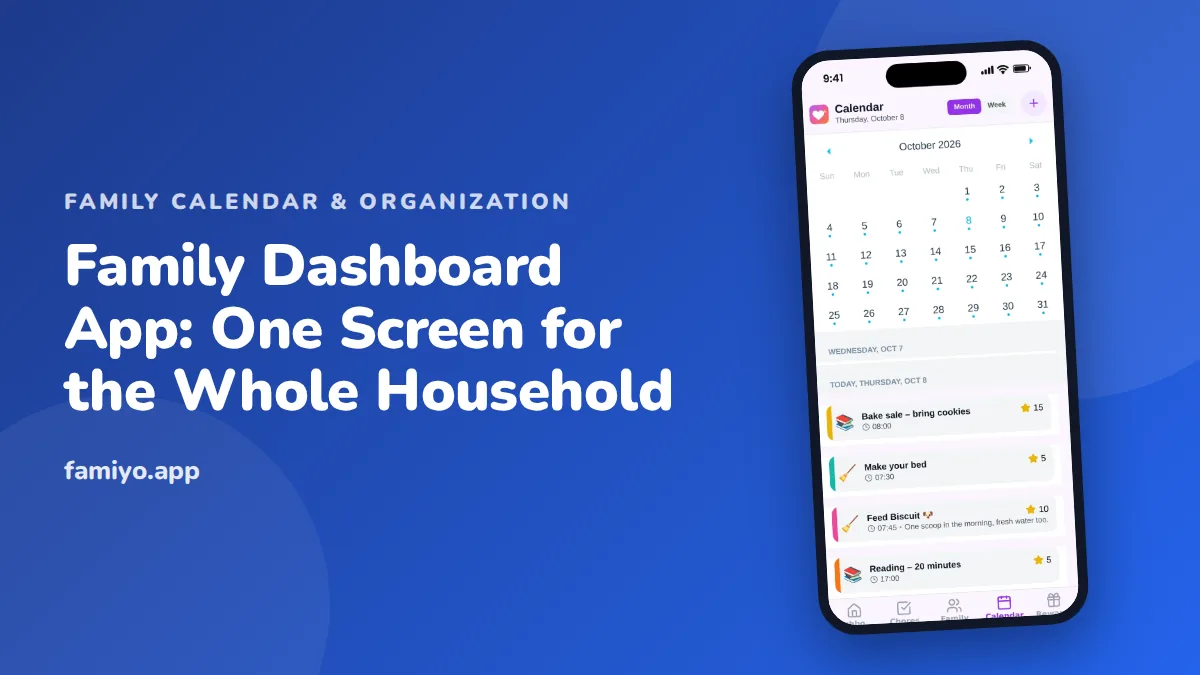
Somewhere in your house there is a fridge calendar, a notes app, a school email you meant to answer and a group text about Thursday. A family dashboard app promises to pull those into one screen. Some do. Many just add a fifth place to look. This guide covers what a dashboard should actually show, what to ask before you commit, and how to set one up in your first week so it sticks.
What a family dashboard app should show
The word "dashboard" gets stretched. In practice you want a single home screen that answers four questions in about ten seconds: what is happening today, who needs to be where, what still needs doing, and what is coming this week.
That means the screen should combine events and tasks rather than keeping them in separate corners. If the school pickup lives in one tab and the trash night reminder in another, you have rebuilt the scattered system you were trying to escape.
Here is what a useful dashboard includes, and what is nice to have but not essential.
| Element | Why it matters | Essential? |
|---|---|---|
| Today view with events and chores | The thing you check at 7:15 a.m. | Yes |
| One color per family member | Lets you spot a conflict in a glance | Yes |
| Month and week views | Week for planning, month for the big picture | Yes |
| Live sync on every phone | A change made at noon must reach the other parent by 12:01 | Yes |
| Repeating events | Weekly practices should not be typed 40 times | Yes |
| Kid-friendly view | Children check their own plan instead of asking you | Strongly recommended |
| Widgets, wall-display mode | Convenient, but the app must work well first | Nice to have |
Notice what is missing: dozens of modules. A dashboard crowded with weather, recipes, news and a dozen tiles looks impressive in a demo and gets ignored by week three. Fewer elements that everyone reads beats more elements that nobody opens.
Questions to ask before you pick one
Run any candidate through these questions. Each one is cheap to answer in the first 20 minutes of a trial.
- Can every person in the house, including a 7-year-old, get their own view without needing an email address? Many kids do not have one.
- Does a change made on one phone show up on the other phone without anyone refreshing?
- Can you set repeating events with a pattern that matches your life (weekly, every other week, every few days)?
- Do you control what children can change? Ideally you can decide whether kids may add events or only look.
- What happens at your family size on the free plan? Count the people, count your repeating items, and see which limits you hit.
- Does it send reminders to the right person, and only that person?
- Can you get your information out later if you leave?
Question 5 deserves a minute. Free plans usually cap something: members, repeating events, calendars or history. Write down the cap before you enter a month of data.
Red flags to watch for
Some warning signs show up quickly. If you see two or more in a trial, move on.
- The setup asks for a long profile before you see a single calendar day.
- Kids need a full account with their own email just to look at their schedule.
- Notifications are all-or-nothing, so the whole family gets pinged about one person's dentist visit.
- The free plan hides the very feature the sales page showed first.
- You cannot tell at a glance who an event belongs to.
- Ads appear in a screen your children use.
- It looks great on one phone and sluggish on another. Your family will not all have the same device.
A subtler flag: an app that needs one person to do all the data entry forever. If the plan only works while a single parent updates everything, you have moved the mental load, not shared it. Look for apps that let both parents be administrators.
Free versus paid: where the traps are
Free is a fair price to test with. It becomes a trap in three situations.
The first is the quiet limit. The app is free until your fourth family member or your second repeating event, and then the dashboard goes read-only the week before school starts. Check limits on day one.
The second is the feature you assumed was included. Reminders, sharing with a second parent and kid access are sometimes held back for paid tiers. Make a list of your must-haves and tick them off against the free plan, not against the marketing page.
The third is the data you cannot take with you. A month of carefully colored entries is an investment. Before you commit, find out whether you can export or whether you would start from zero.
Paid plans are not bad. If you have a large family or many repeating routines, a subscription can be sensible. The test is simple: pay only after your family has used the free version for two weeks and you know exactly which limit you are buying your way out of.
Setting it up in the first week
A dashboard fails when it is half empty. Aim for a thin but real version quickly.
- Day 1: Add each adult and one color per person. Enter the fixed commitments: school hours, work shifts, regular practices and lessons.
- Day 2: Add repeating events once, with the right pattern. Weekly swim, Tuesday band, every-other-Friday custody handoff.
- Day 3: Invite the kids. Show them how to read today's screen. A 6-year-old can learn "my color, my stuff" in a minute.
- Day 4: Add household tasks to the same place: trash night, library books, pet feeding.
- Day 5: Move one new thing into the app on the spot. If a coach texts a schedule change, add it before you put the phone down.
- Weekend: Do a 10-minute look-ahead. Our guide to the weekly family meeting has a simple agenda that works well with a dashboard on the table.
The most important rule is a single source of truth. If something is not in the app, it is not happening. That sounds strict, and it is what makes the dashboard worth opening.
Getting everyone to actually look
Adults are usually the hard part. Two habits help. First, make the app the answer to questions: when someone asks "what time is practice?", reply "it's on the calendar" kindly, every time. Second, stop double-entering. If you also write events on a paper calendar, you have told the family the app is optional.
For tasks, agree who owns what before you enter it. Our piece on dividing household chores fairly helps you settle that conversation first, so the dashboard shows decisions instead of causing arguments.
If you are still comparing options, see our free family calendar app guide for what a no-cost plan usually covers, and the shared family calendar app guide for choosing one the whole house will use.
Running the dashboard in Famiyo
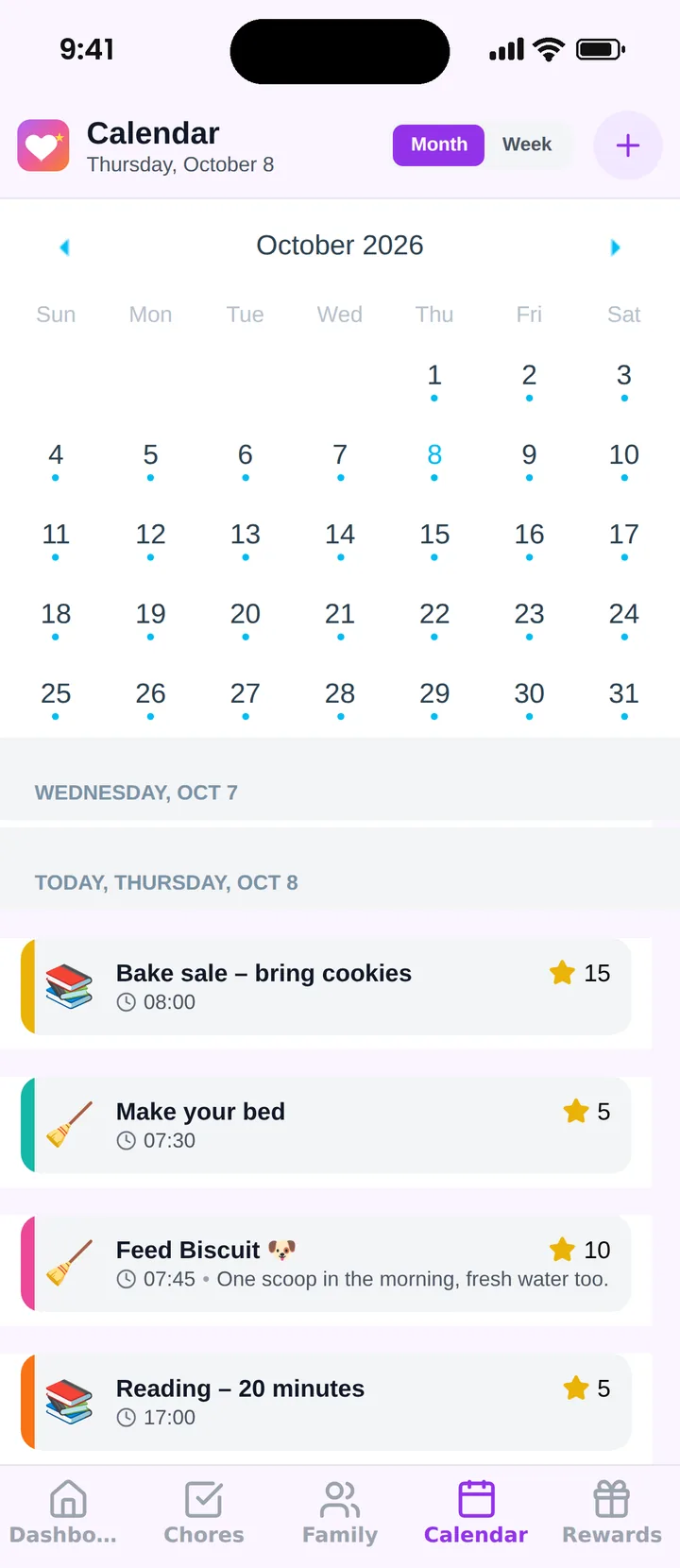
Famiyo is a free family app for iPhone and Android that combines a shared family calendar, chores with points and a rewards shop; kids join with a code, no email needed. For a dashboard, the shared calendar has month and week views, a color for every family member and categories like school, sports and appointments, and chores appear alongside events. Parents get a home screen with quick actions, and a child's home screen shows only today's events and chores. All phones sync live. The free plan covers up to 3 family members and 1 repeating task, and Premium removes those limits. See how it compares in our list of the best family organizer apps.
A realistic first goal
Do not try to run the whole household from the screen by Friday. Pick one pain point, such as the Monday morning scramble or the sports schedule, and make the dashboard the only place that answers it for two weeks. When the family stops asking you, add the next thing.
Frequently asked questions
What is a family dashboard app?
It is an app whose home screen gathers what the household needs today in one place: events, chores and reminders for each person. The point is that nobody has to open three apps or check a paper calendar to know what is happening.
Should kids have access to the family dashboard?
Yes, with a view built for them. Most kids over 6 can handle seeing their own events and tasks. Look for an app where you decide what children can add or change, so a stray tap does not erase a dentist appointment.
Is a family dashboard app better than a wall calendar?
They solve different problems. A wall calendar is great at home and impossible to check from the soccer field. An app travels with every parent and updates live. Many families keep both, with the app as the source of truth.
How long does it take to set up a family dashboard?
Plan on about an hour for the first entries, then 5 minutes a week. Enter fixed commitments first (school, work shifts, practices), add one color per person, and let the rest build up as real life happens.
Try Famiyo With Your Family
Chores with points, a rewards shop for kids and one shared family calendar. Set it up in a couple of minutes.



Free to download • No credit card required • Available on iOS & Android