How to Make a Chore Chart on Google Sheets (Step by Step)
Build a weekly chore chart in Google Sheets in about 15 minutes: checkboxes, automatic point totals, color coding and sharing. Includes a Google Docs option.
By Famiyo Editorial Team5 min read

A spreadsheet is a good first chore chart. It is free, you can change it in seconds, and the whole family can see the same page. Here is a setup that works: one chore chart, tick boxes for each day, points that add themselves up and colors that show at a glance who is done.
Set up the grid
Open a new Google Sheet and name it something you will find again, like "Family Chores". Use one tab per week or one tab per child. For a first chart, one tab for the whole family is fine.
Type the headings in row 1:
- A1: Chore
- B1: Points
- C1 to I1: Mon, Tue, Wed, Thu, Fri, Sat, Sun
- J1: Who
Starting in A2, list the chores. Keep it short. Two to four daily tasks per child is plenty for school-age kids, and two to three for preschoolers. Put the chore, the points (5 for a small task, 10 for a medium one, 20 for a big one), and the name of the child in column J.
If you are not sure what to put on the list, our master chore list for kids has plenty of ideas sorted by age.
Add checkboxes
Select C2 to I11 (or however many rows you used). From the menu, choose Insert, then Checkbox. Every cell in that range now has a box that you click to tick.
Tip: the boxes hold the values TRUE and FALSE, which is what makes the point counting in the next step work. Do not type over them.
Total the points automatically
Under the chart, add a small summary area. For example, put each child's name in A15 and A16. In B15, use a formula that multiplies ticks by points for that child:
=SUMPRODUCT((J2:J11=A15)*B2:B11*(C2:I11=TRUE))
Check that the ranges match your rows. The formula counts every ticked box in a row for that child and multiplies by the row's points. If a formula like that is more than you want, a simpler version counts ticks only: =COUNTIF(C2:I11,TRUE).
Label the total clearly: "Points this week". Kids care about this number more than you might expect.
Add color so it reads at a glance
Select C2 to I11 again, then choose Format, then Conditional formatting. Set the rule to "Custom formula is" and enter:
=C2=TRUE
Pick a green fill. Now every ticked box turns green. You can add a second rule for the "Who" column so each child has a color, which is helpful when two or three kids share one sheet. Use a soft shade, since bright colors on a full grid get loud.
Freeze the top row (View, then Freeze, then 1 row) so the days stay visible when the list gets longer.
Share it and put it where the family will see it
Click Share and add each parent with Editor access. For children, there are a few options:
- Open the sheet on a tablet or shared computer in the kitchen.
- Print a copy for the fridge and tick it on paper, then update the sheet on Sunday.
- Give older kids Editor access on their own device, if they have an account.
Be realistic about the last point. Young children often do not have Google accounts, and checking a sheet on a phone with a small grid is fiddly. A paper copy that stays in one spot is more reliable than a perfect spreadsheet no one opens.
Reset it each week
Spreadsheets do not repeat tasks on their own. On Sunday evening, select the checkbox range and press Delete to clear every box. Or make a "Template" tab with empty boxes, then right-click it and duplicate it each week, naming the copy with the date. That way you keep a record of how the weeks went.
If you want the chart to look more polished, our guides to making a chore chart in Excel and a chore chart on Canva cover other formats, and the general six-step chore chart guide explains how to choose what goes on it.
The Google Docs version
If you searched for a chore chart on Google Docs, the steps are shorter and the result is more of a printout.
- Open a new Google Doc and set the page to landscape (File, then Page setup).
- Choose Insert, then Table, and make it 8 columns wide and as many rows as you have chores.
- Type the chores in the first column and the days across the top row.
- In each day cell, add a checkbox with Format, then Bullets and numbering, then Checklist.
- Print it, or share the doc with edit access.
A Doc is fine for a paper chart on the fridge. It will not add up points or color anything for you, so use a Sheet if you want any math.
Where a spreadsheet falls short
A sheet will serve a family for a few weeks, and that may be all you need. The common failure points are predictable. Nobody gets a reminder, so the sheet depends on someone remembering to open it. The week has to be reset by hand. And the child's view is the same grid as yours, which can be a lot for a 6-year-old.
If you are seeing those problems, that is a sign the chart works and the format does not. It is not a sign you failed.
When an app replaces the sheet
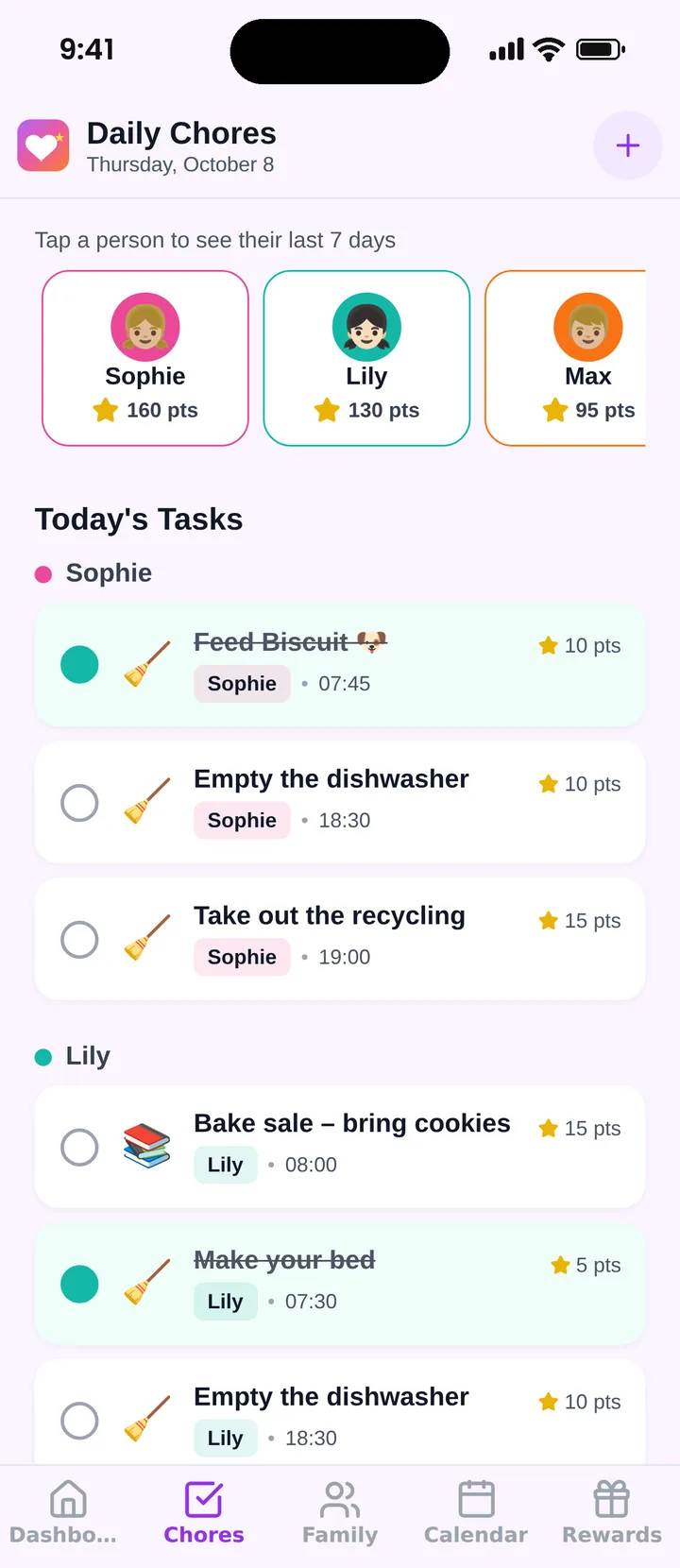
Famiyo is a free family app for iPhone and Android that combines a shared family calendar, chores with points and a rewards shop; kids join with a code, no email needed. It covers the three gaps above: you add a chore once and set it to repeat daily, weekly or every few days, give each child their own points for it, and kids hear about new tasks through push notifications. Parents get notified when a chore is done, and everything syncs live between phones, so no one resets anything on Sunday. See our list of the best chore chart apps for a wider comparison.
A fifteen-minute plan
Build the grid tonight with three chores per child. Run it for two weeks before adding anything, since a new routine needs 2 to 3 weeks of consistent use before you can judge it. If the sheet is still open on the third Sunday, keep it. If not, you know what to fix.
Frequently asked questions
Can I make a chore chart in Google Docs instead?
Yes. Open a new doc, choose Insert, then Table, and set the columns to chores and days. You can add check boxes with Format, then Bullets and numbering, then Checklist. It prints well but cannot total points for you.
How do I reset a Google Sheets chore chart each week?
Select the checkbox range and press Delete to clear every box at once. Many parents keep a template tab and make a copy each Sunday, so the previous week stays on record.
How do I add up points automatically in Google Sheets?
Put each chore's points in one column and checkboxes in the day columns. In a total cell, multiply the count of ticked boxes by the points for each row, for example with SUMPRODUCT, then add the rows together.
Can my kids check boxes on their phones?
Yes, if you share the sheet with edit access and they have the Google Sheets app. Younger kids often need a parent's account, since Google accounts for children are set up through family settings.
What are the downsides of a spreadsheet chore chart?
It does not remind anyone, it does not repeat tasks on its own, and someone has to reset it every week. If the sheet gets forgotten, so do the chores.
Try Famiyo With Your Family
Chores with points, a rewards shop for kids and one shared family calendar. Set it up in a couple of minutes.



Free to download • No credit card required • Available on iOS & Android